
ETA Overview
Start here to understand how Projects, Modules, Tasks and Releases fit together.
What is ETA?
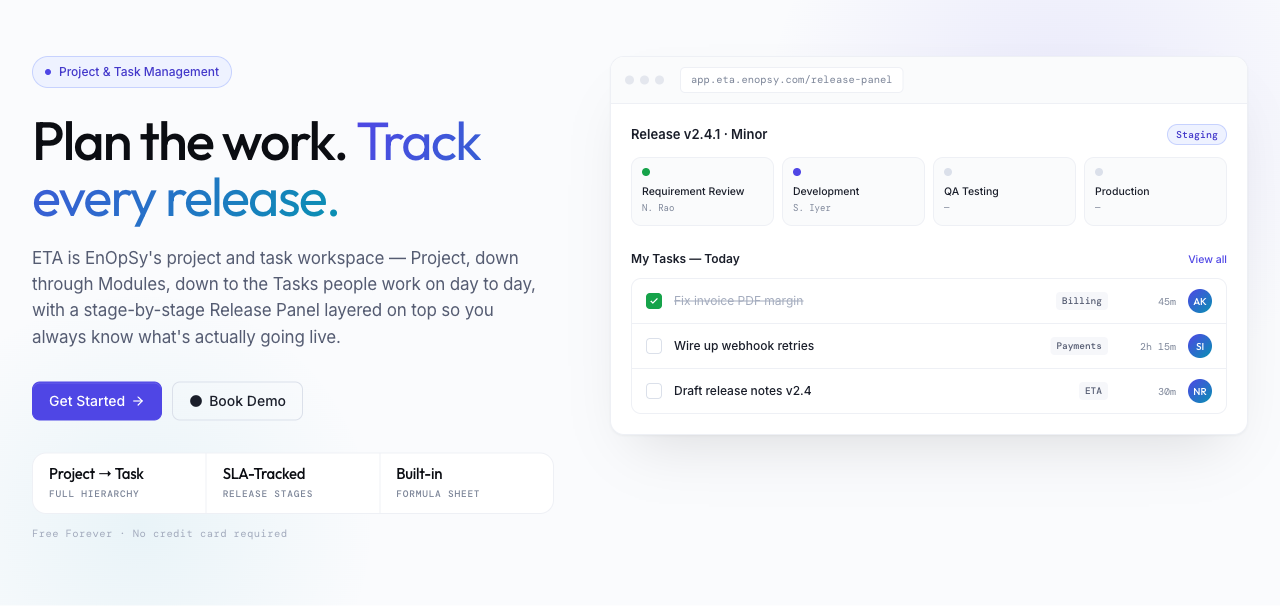
ETA is AllHeartWeb's project and task management workspace. It's where work gets planned, assigned, scheduled and shipped — from a top-level Project, down through Modules, down to the individual Tasks people work on day to day, with Releases layered on top to track what actually goes live.
Why ETA exists
Spreadsheets and chat threads fall apart once a team is juggling more than a couple of projects at once. ETA gives everyone one shared place to see what's planned, what's overdue, who's doing what, and when a release is actually ready — without having to ask around.
How the pieces fit together
ETA organizes work in a simple hierarchy:
| Level | What it is |
|---|---|
| Project | The top-level container for a piece of work — a product, a client engagement, an initiative. |
| Module | A sub-area inside a Project — a feature, a component, a phase of work. |
| Task | The individual unit of work someone actually does, scheduled with a duration and an assignee. |
| Release | A tracked rollout for a Project, made up of sequential stages (e.g. Development → QA Testing → Admin Approval) that must be completed in order. |
Tasks can also be created individually, in bulk (10+ at once), or as a recurring template that regenerates on a schedule.
Where everything lives in the sidebar
| Sidebar item | What you'll find there |
|---|---|
| HomePage | Your personal at-a-glance summary. |
| My Tasks | Every task assigned to or created by you, plus Bulk Create, Trash and Merge/Split Tasks. |
| Sheet | A flexible working sheet/register for tracking miscellaneous items. |
| Dashboard | The team-wide view: every member's task load across the organization. |
| Projects | All Projects, with status, completion and a Trash / Merge / User Migration toolset. |
| Modules | All Modules across every Project. |
| Release Panel | Every Release and its stage pipeline, in List, Timeline or Board view. |
| Recurring Tasks | Templates that automatically regenerate tasks on a schedule. |
| Time Tracking | A collapsible section with Team Timeline (org-wide schedule) and User Timeline (your own). |
Before you start
You'll need an AllHeartWeb account with access to ETA. If you can see ETA in the left sidebar under Manage Time, you're set — what you can create or edit from there depends on the permissions your account has been given.